



The diagnostic software for the LAUNCH X431 tool is the X-431 APP. If the diagnostic software encounters problems and needs to be reinstalled, or if the X-431 APP has been accidentally deleted, it can be reinstalled via “APP Init”. This article will explain how to perform this operation.
NOTE: This operating procedure applies to devices such as the X431 PRO series, PRO3 series, and PAD series that have the “X-431” APP installed.
Operating procedures:
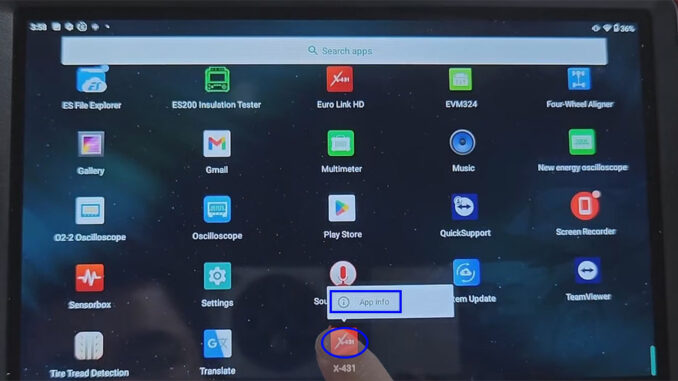
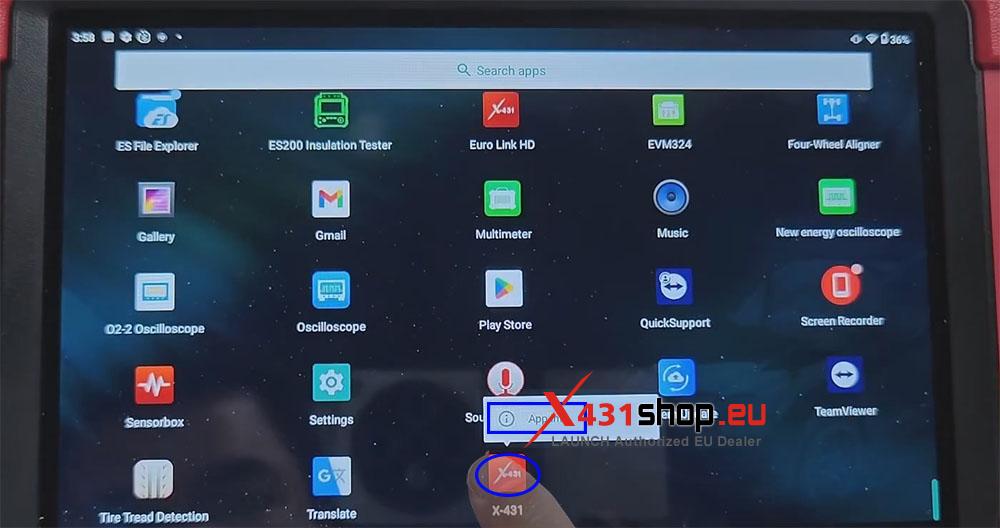
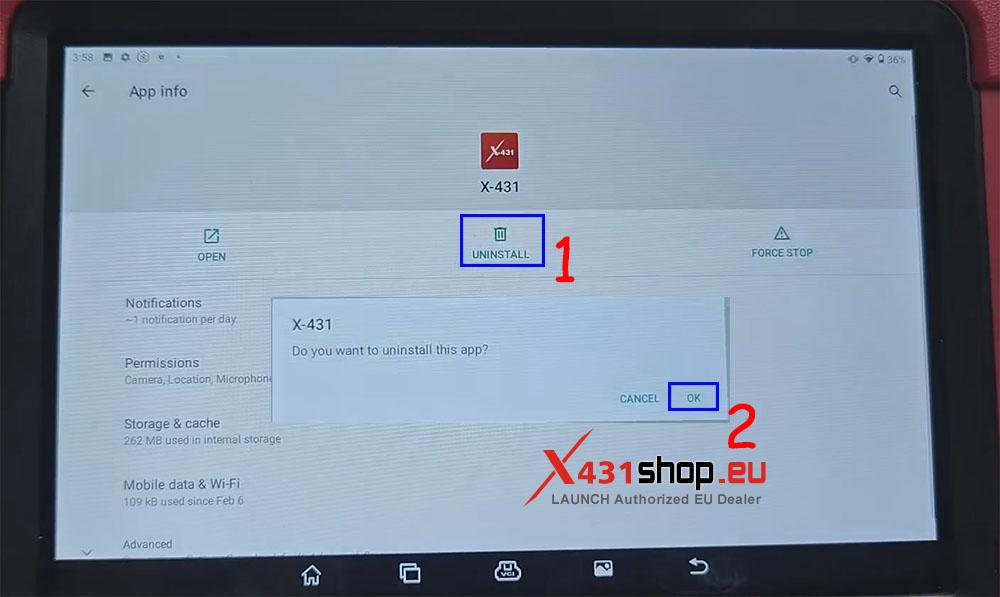
1) Long press the X-431 APP icon, then click [APP Info], and finally click [UNINSTALL], then click [Yes] to confirm the deletion of the application.
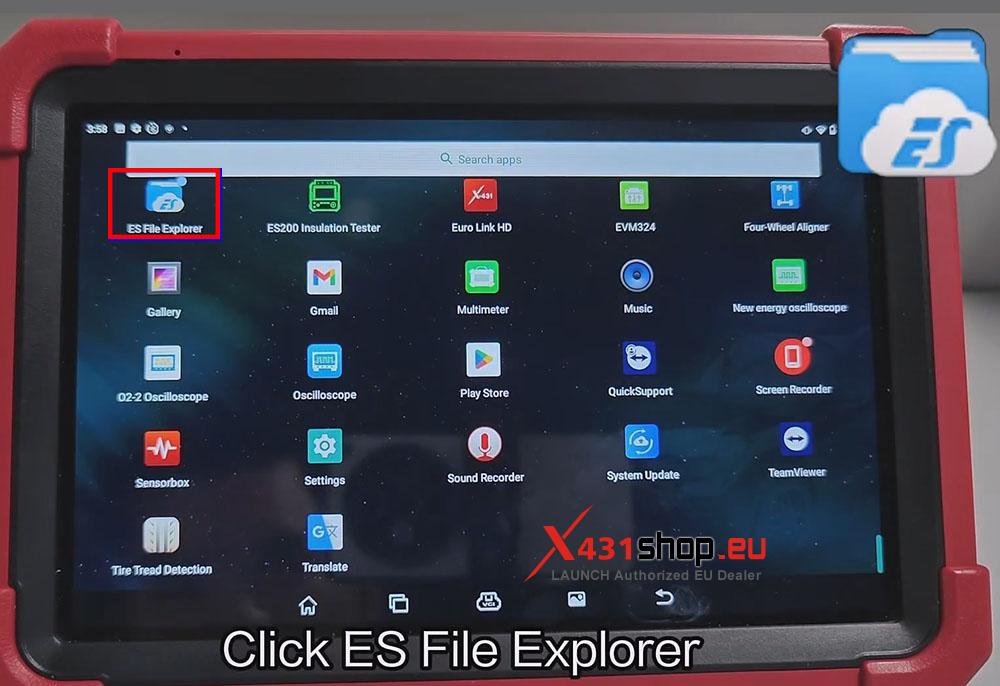
2) Click [ES File Explorer], select [Internal Storage].
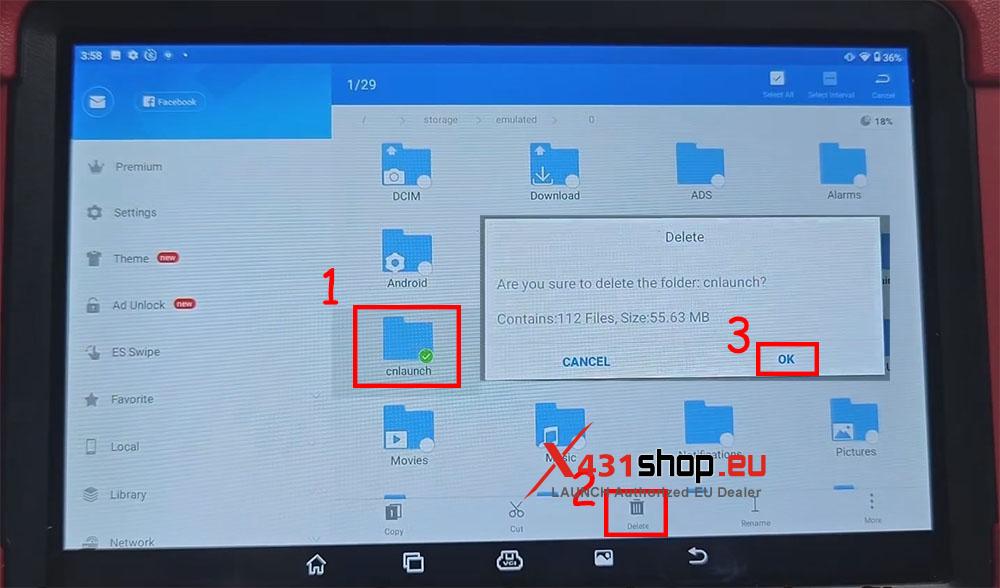
3) Long press the [cnlaunch] folder. After a green checkmark icon appears, click [Delete], then click [OK] to confirm the deletion of the folder.
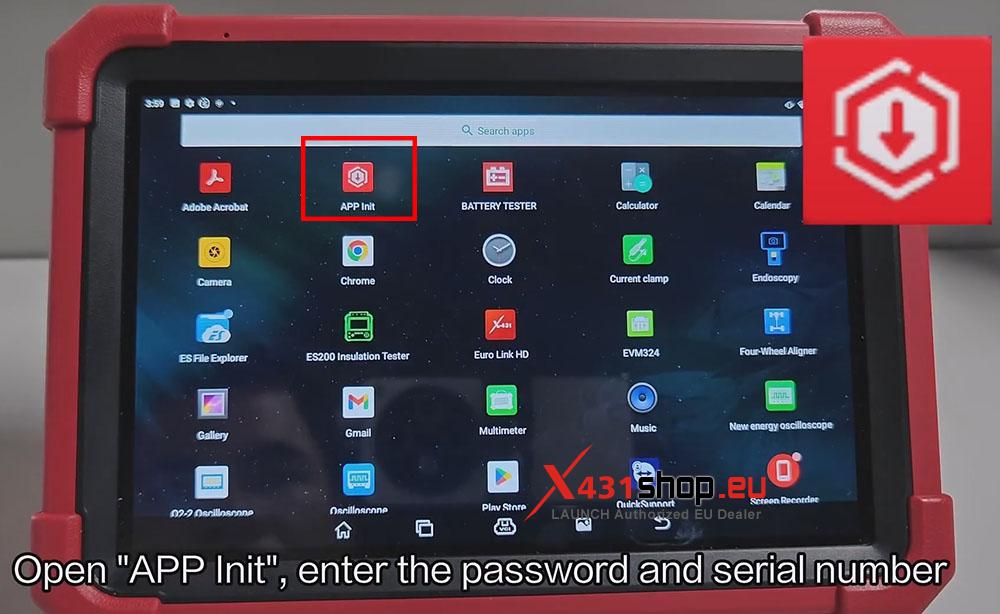
4) Return to the main page, open [APP Init], enter the password and serial number. Click [OK] to download the X-431 APP.
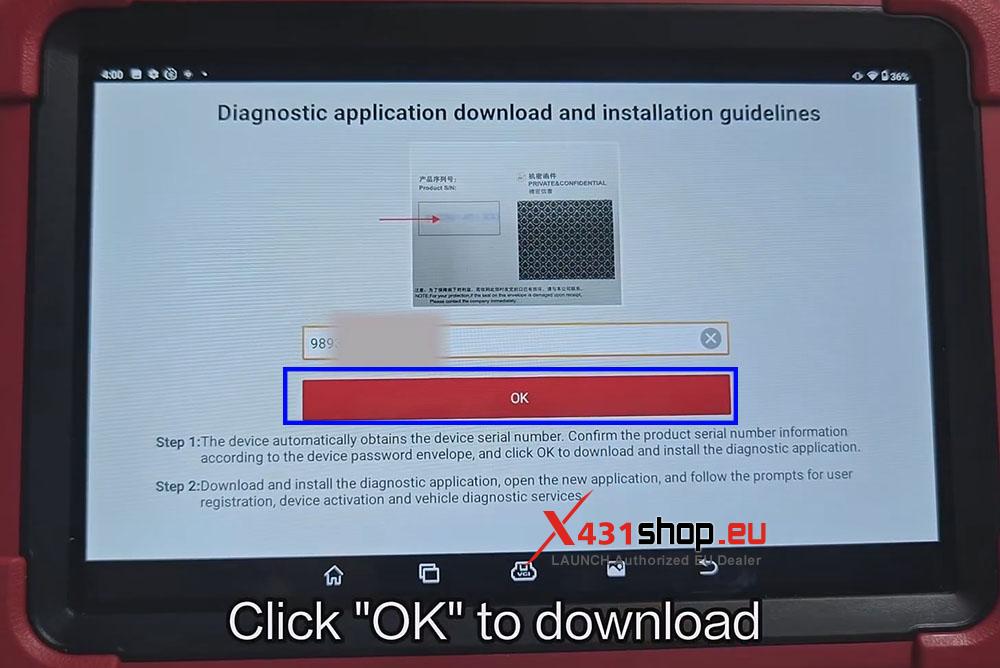
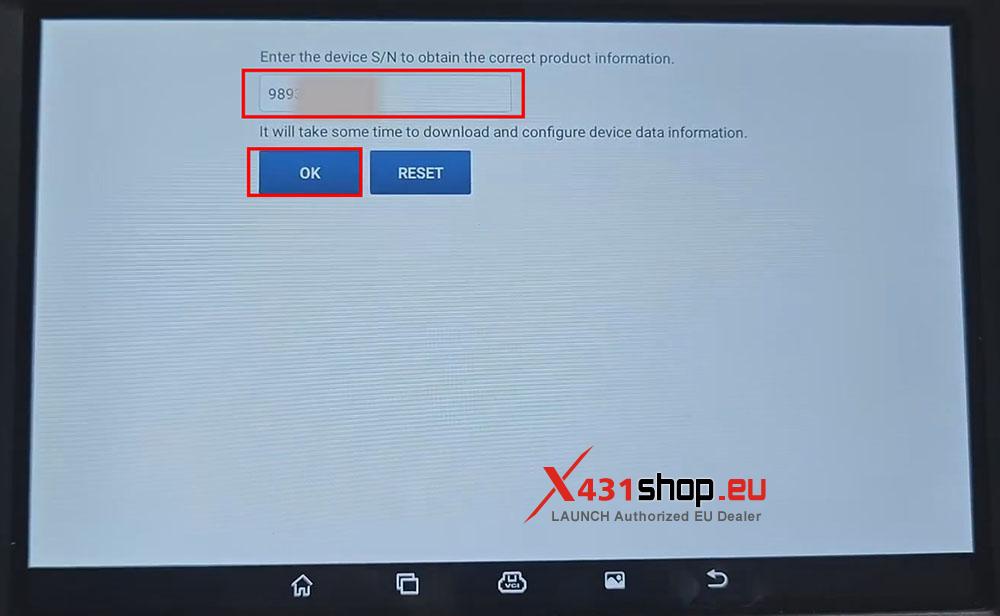
5) Once the download is complete, open the application. When the X-431 APP requests permission, click [YES] and allow display over other apps. Enter the device serial number to confirm.
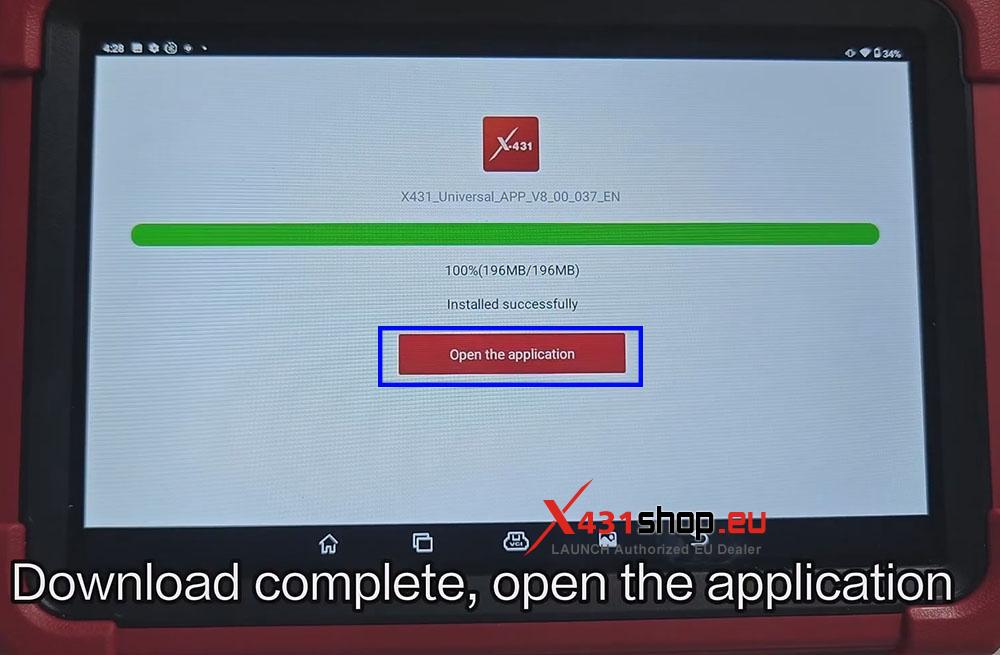
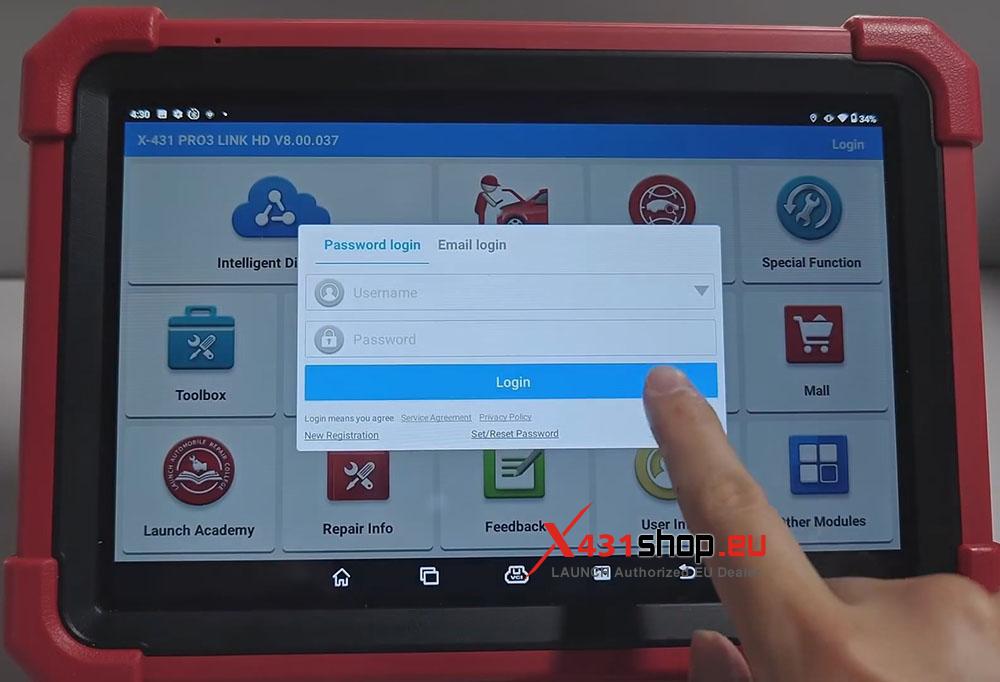
6) Once the software installation is complete, log in to your X-431 account again.
Video Guide: