

After replacing components connected to the vehicle control module (such as the TCAM Backup Battery), the relevant adaptive values should be reset. This article describes how to use the LAUNCH X431 diagnostic tool to resetting VOLVO XC40 software after a TCAM backup battery change.
Function Description:
When replacing components connected to the control module, the relevant adaptive values should be reset. The purpose of the reset is to allow the control module to quickly learn the new component, its characteristics, and its impact on surrounding components and functions.
Tested Model: VOLVO – XC40 – 2023
Supported Equipment: LAUNCH X431 PRO series, X431 PRO3 series, X431 PRO5, and X431 PAD series, the current one for Demo is X431 PAD9.
Execution Conditions:
Set the vehicle usage mode to inactive. Click the “Start” button. If the reset is successful, click the “Charge The Backup Battery” button to begin charging the TCAM backup battery.
Operation procedure:
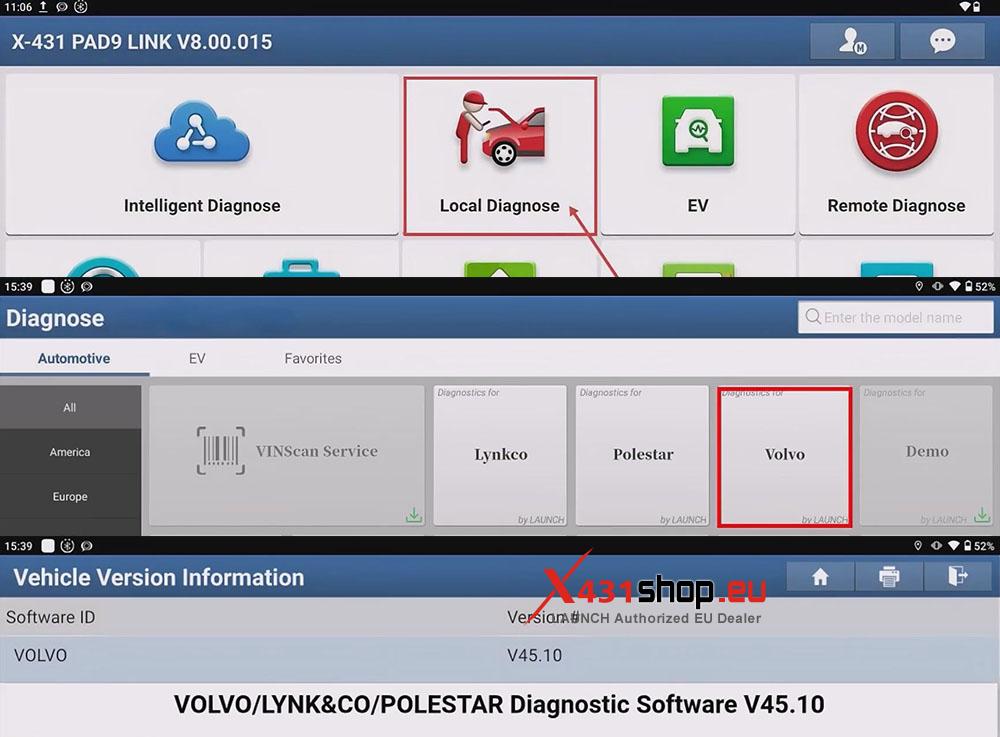
1) Open the X431 diagnostic software, select [Local Diagnose] -> [Volvo]. It is recommended that the Volvo diagnostic software version be V45.10 or above.
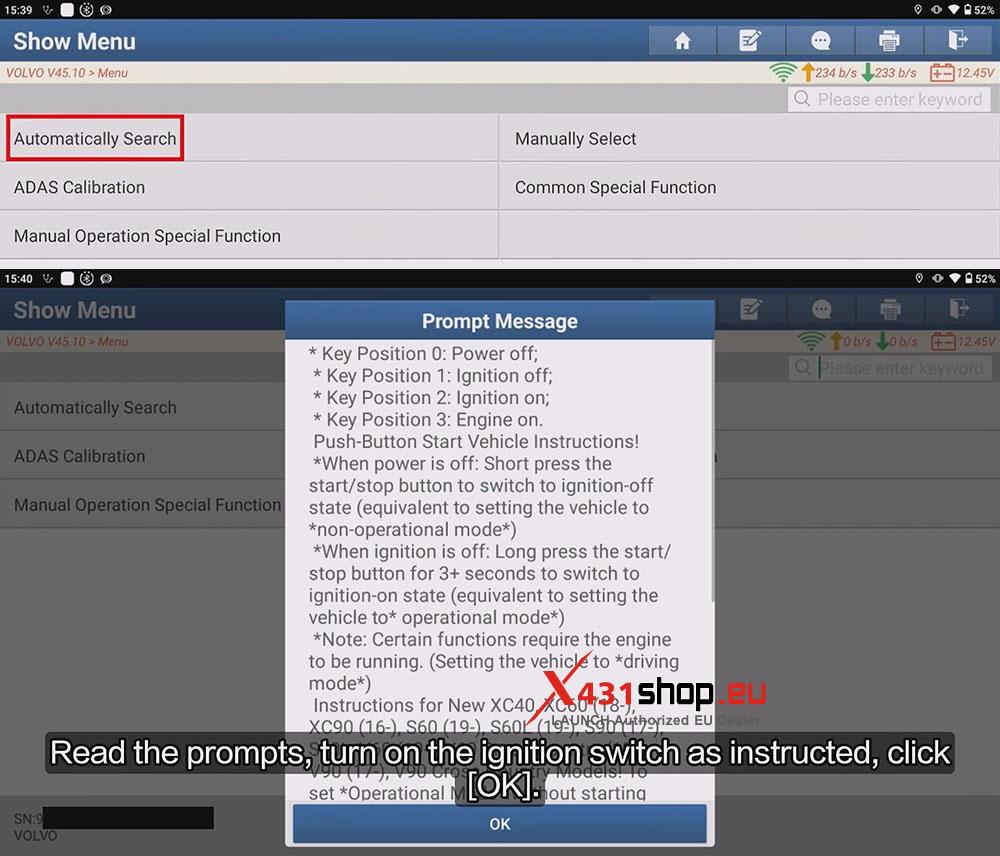
2) Choose [Automatically Search] to enter automatic identification. Read the prompts, turn on the ignition switch as instructed, click [OK].
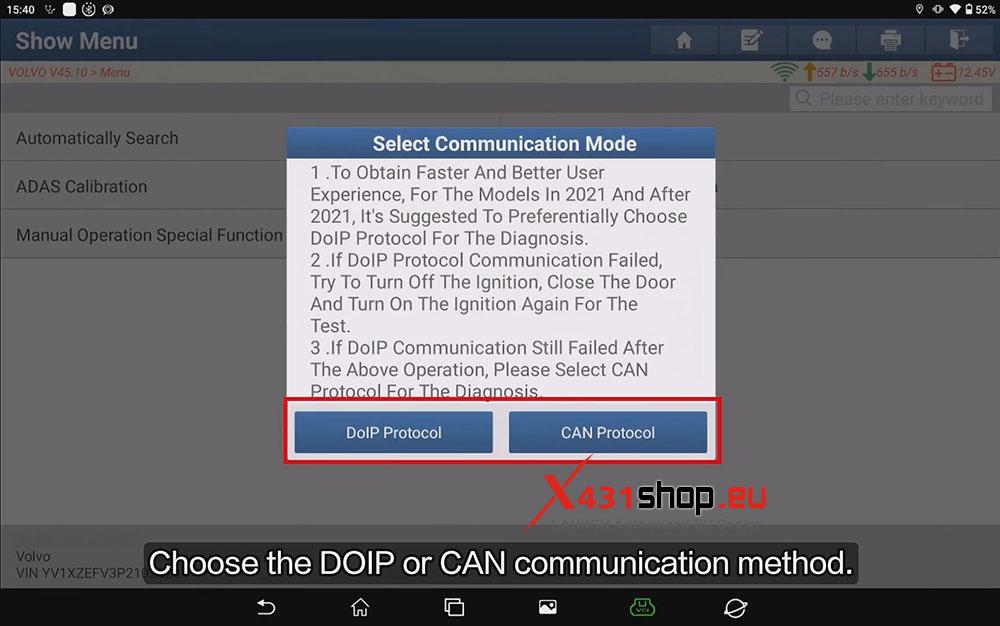
3) Choose the DOIP or CAN communication method.
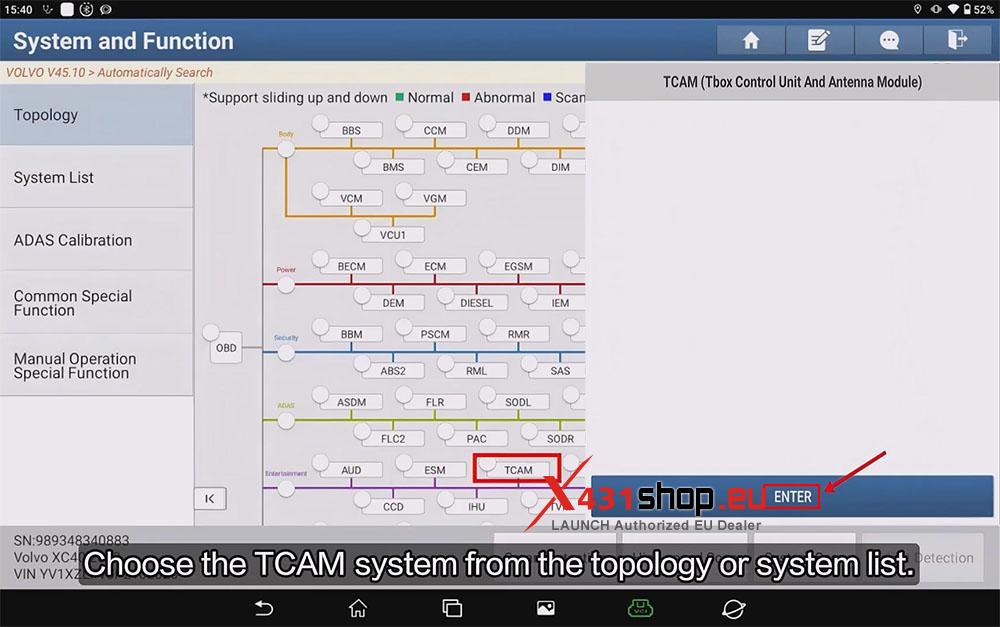
4) Choose the TCAM system from the topology or system list.
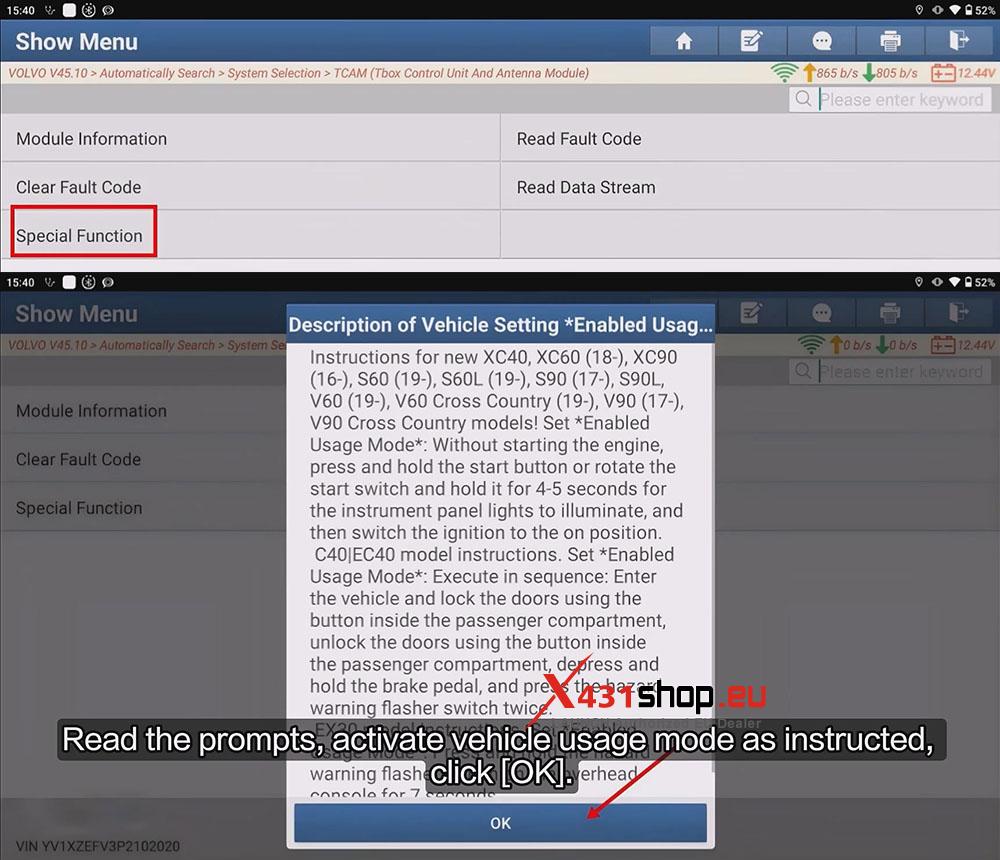
5) Choose [Special Function] on the system function interface. Read the prompts, activate vehicle usage mode as instructed, and click [OK].
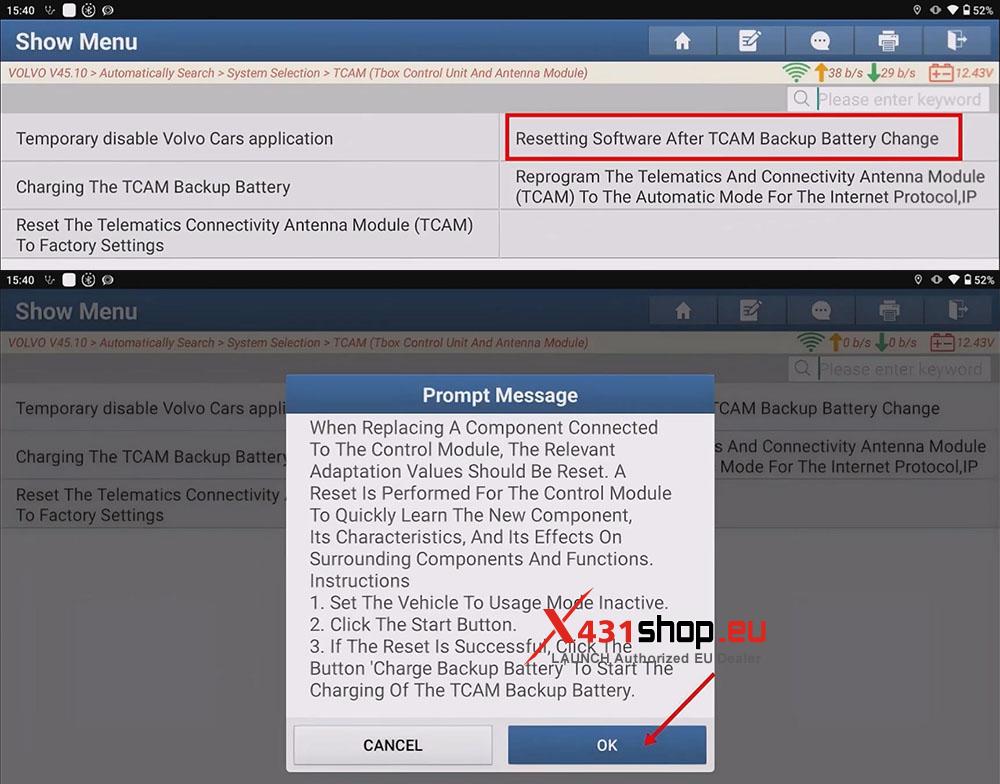
6) Click [Resetting Software After TCAM Backup Battery Change]. Read the prompts, set vehicle usage mode as instructed, click [OK].
NOTE: When Replacing A Component Connected To The Control Module, The Relevant Adaptation Values Should Be Reset. A Reset Is Performed For The Control Module To Quickly Learn The New Component, Its Characteristics, And Its Effects On Surrounding Components And Functions.
Instructions:
1. Set The Vehicle To Usage Mode Inactive.
2. Click The Start Button.
3. If The Reset Is Successful, Click The Button ‘Charge Backup Battery’ To Start The Charging Of The TCAM Backup Battery.
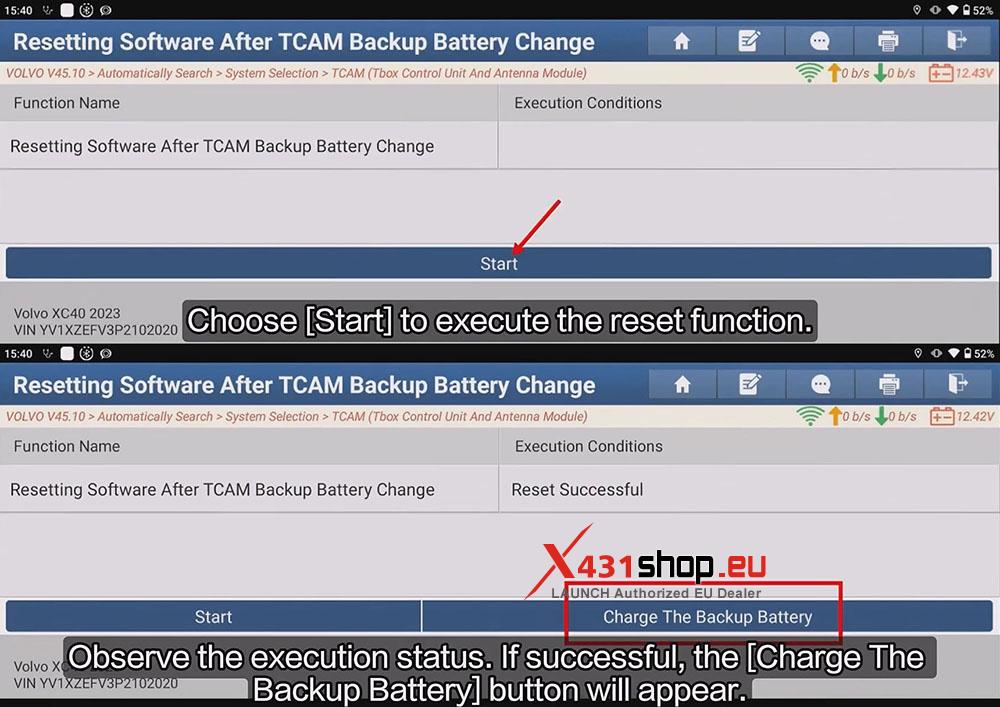
7) Choose [Start] to execute the reset function. Observe the execution status. If successful, the [Charge The Backup Battery] button will appear. Choose [Charge The Backup Battery].
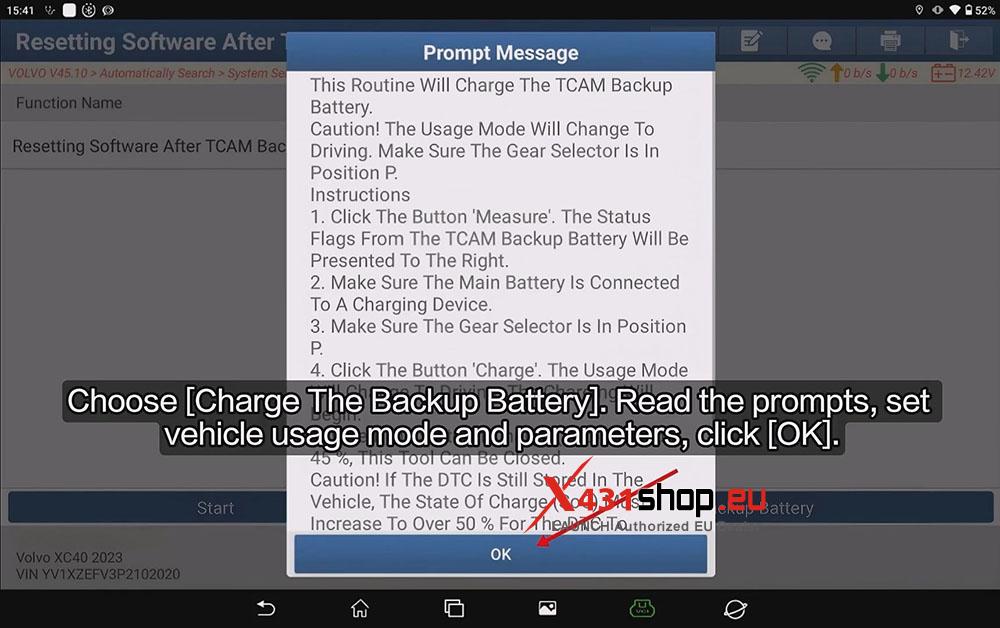
8) Read the prompts, set vehicle usage mode and parameters, click [OK].
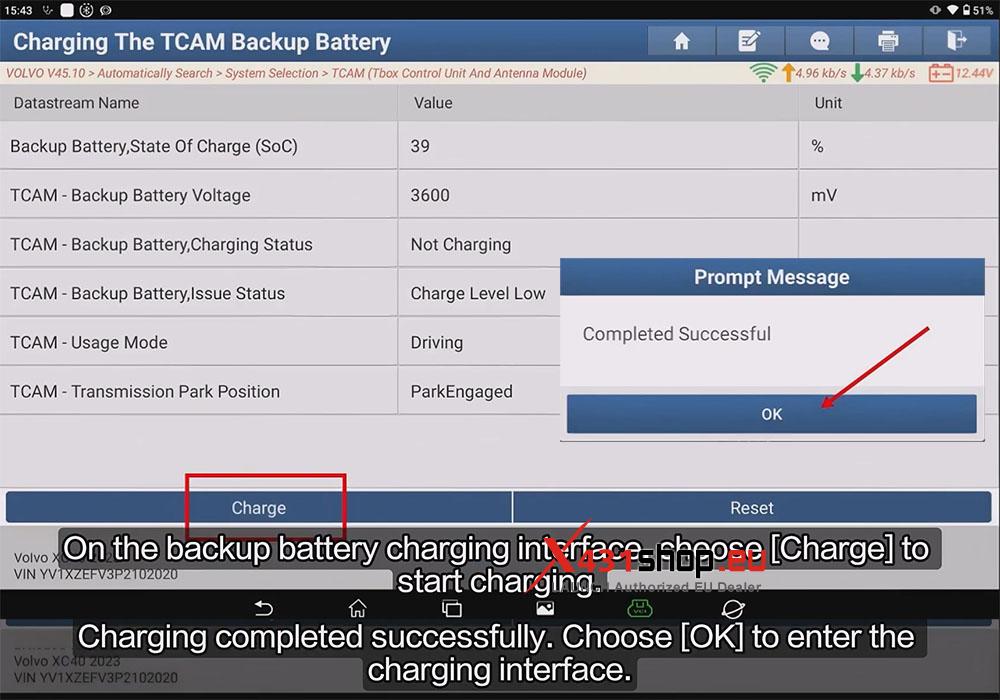
9) On the backup battery charging interface, choose [Charge] to start charging. Charging completed successfully. Choose [OK] to enter the charging interface.
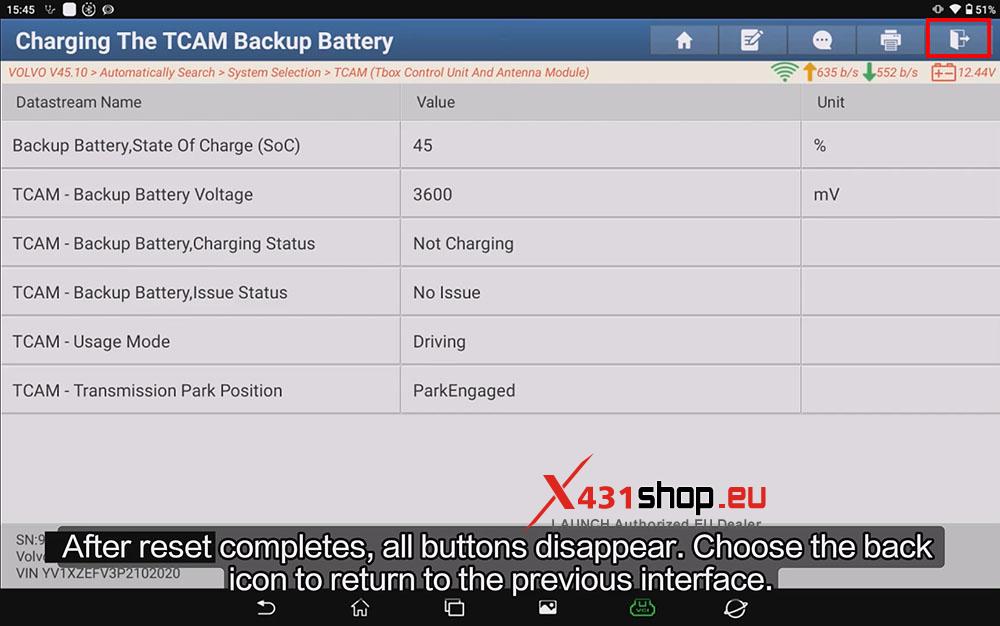
10) Wait for charging. When the SoC (State of Charge) exceeds 45%, you can close this tool.
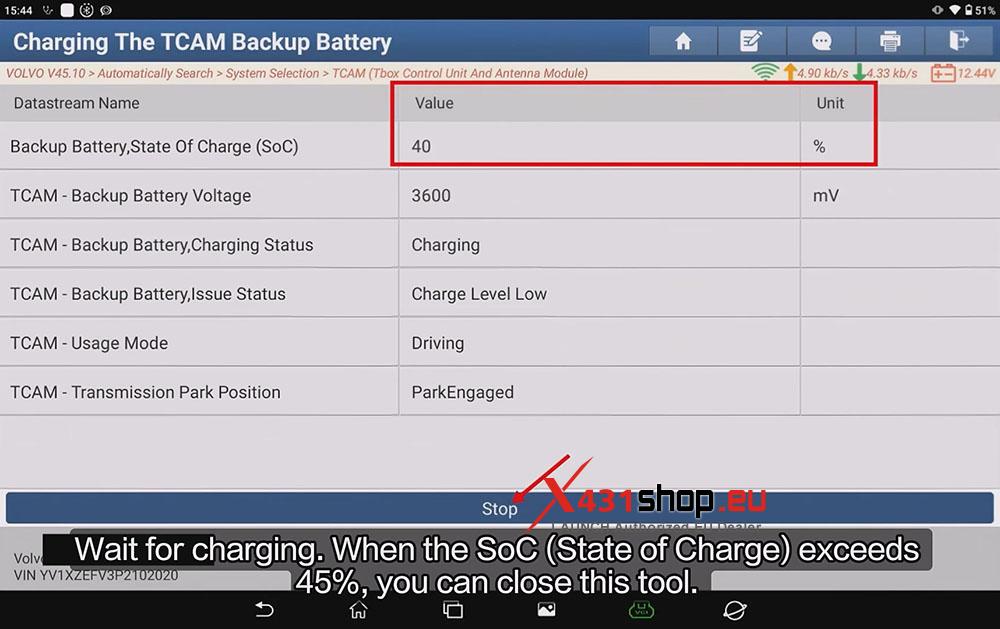
– Choose the [Stop] button to stop charging.
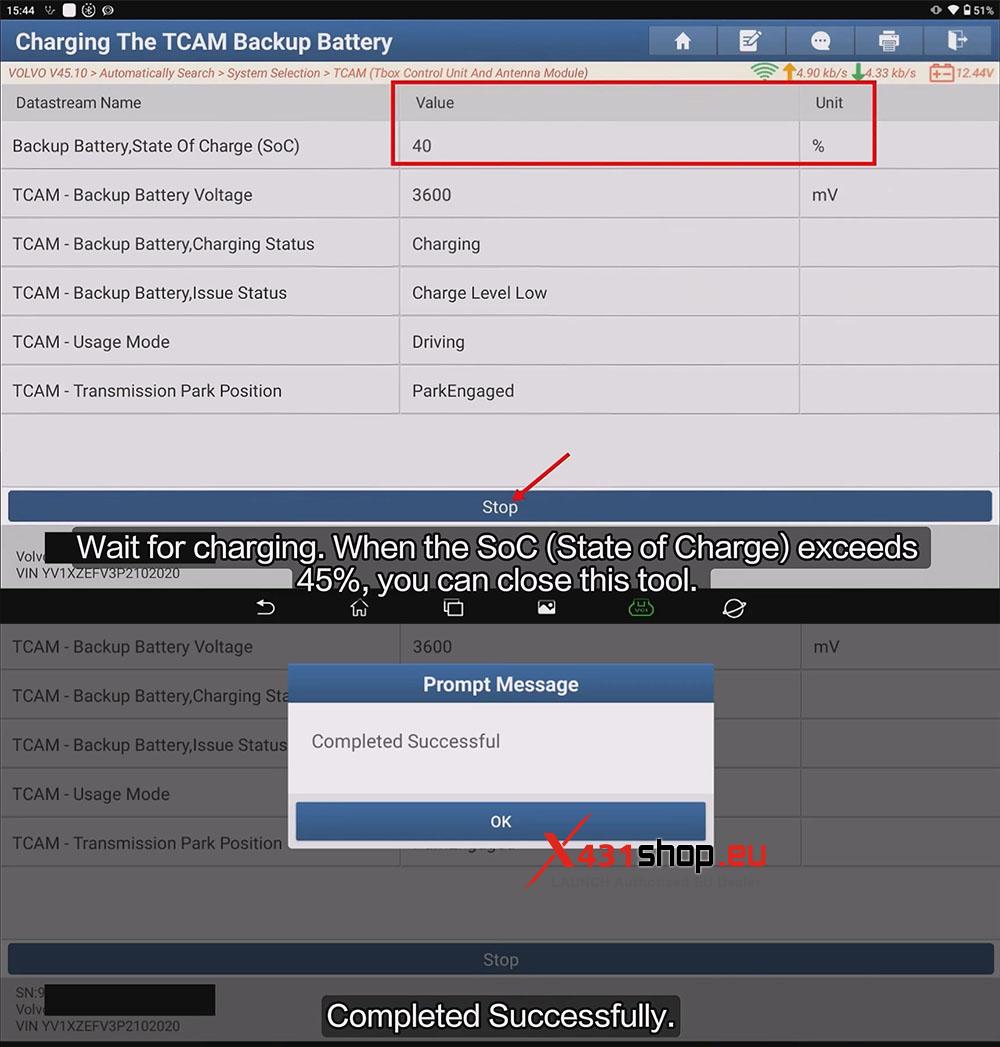
Completed Successfully.
– If SoC is above 50% but DTCs still exist, choose [Reset] to perform a hard reset on the TCAM.
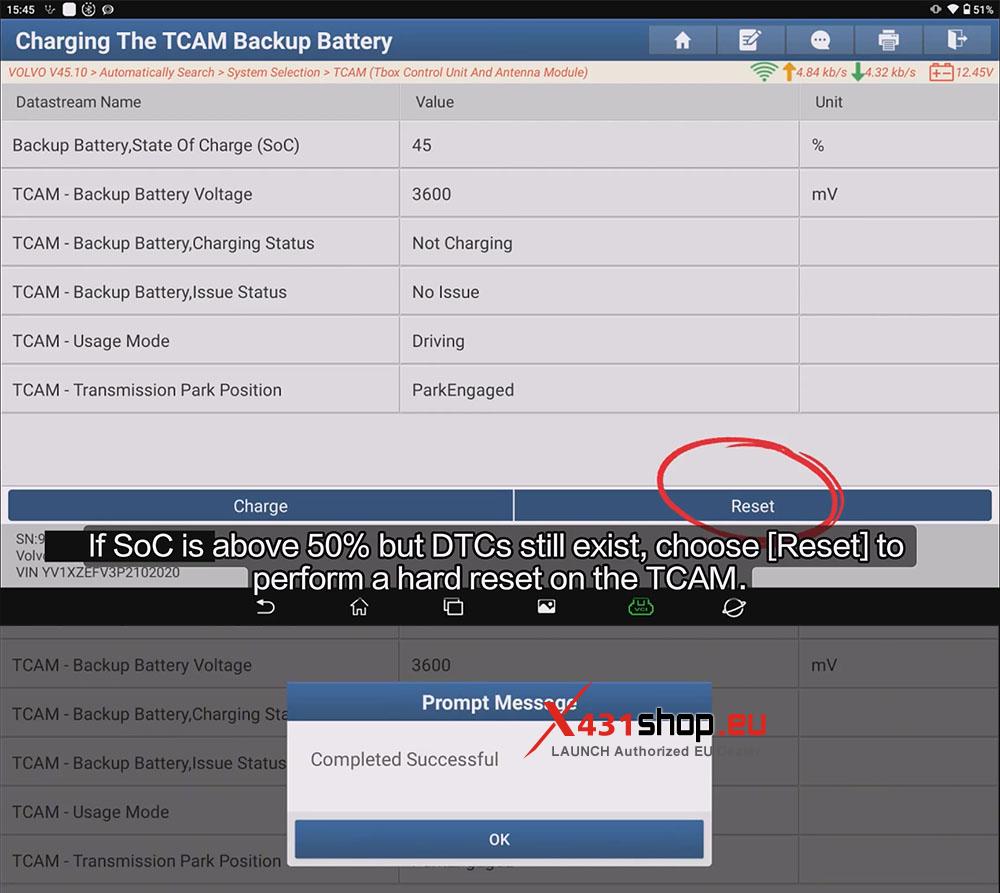
Completed Successfully.
11) After reset completes, all buttons disappear. Choose the back licon to return to the previous interface.