

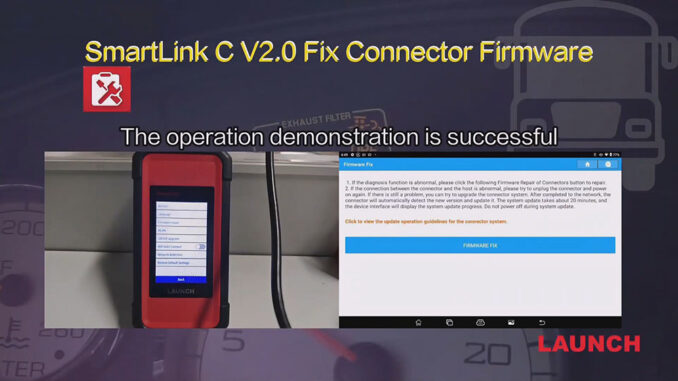
LAUNCH SmartLink not only supports various vehicle protocols (such as DoIP and CAN), but also allows technicians to remotely assist with diagnostics. If a SmartLink device malfunctions, firmware repair can be attempted first. This article will introduce two methods for LAUNCH SmartLink firmware repair.
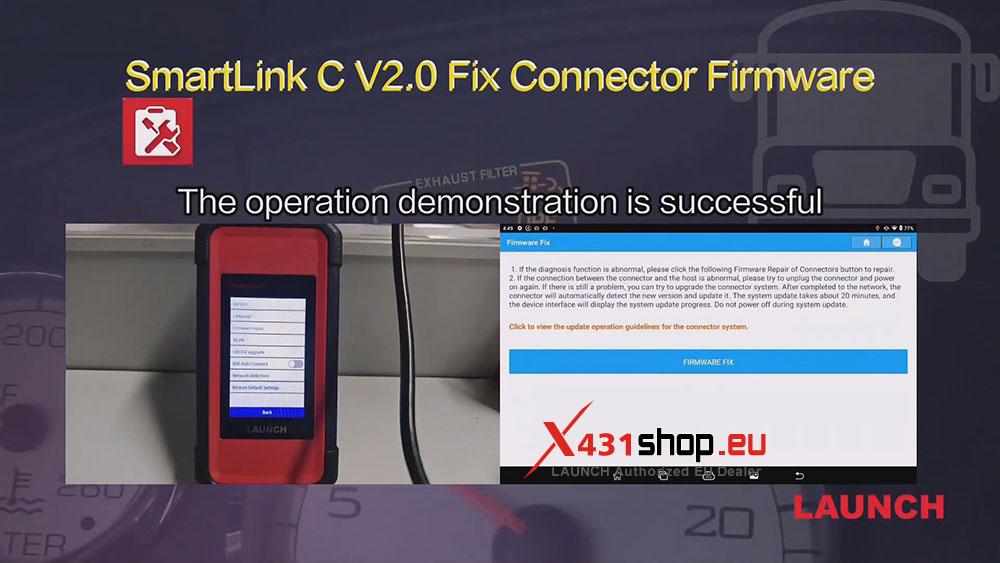
Method 1: Perform the repair directly on SmartLink
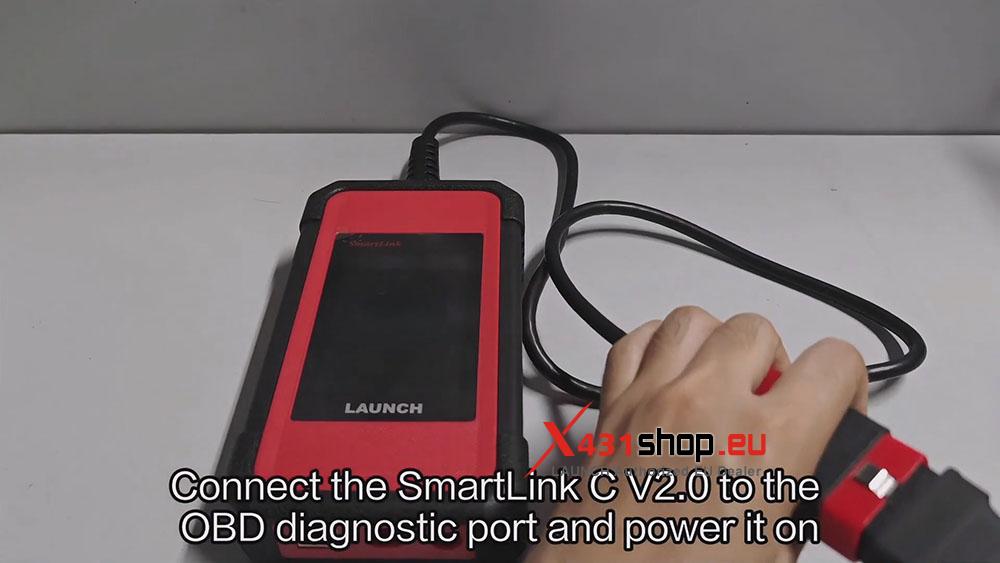
1) Connect the SmartLink C V2.0 to the OBD diagnostic port and power it on. Waiting for the computer to boot up.
2) First, ensure a network connection:
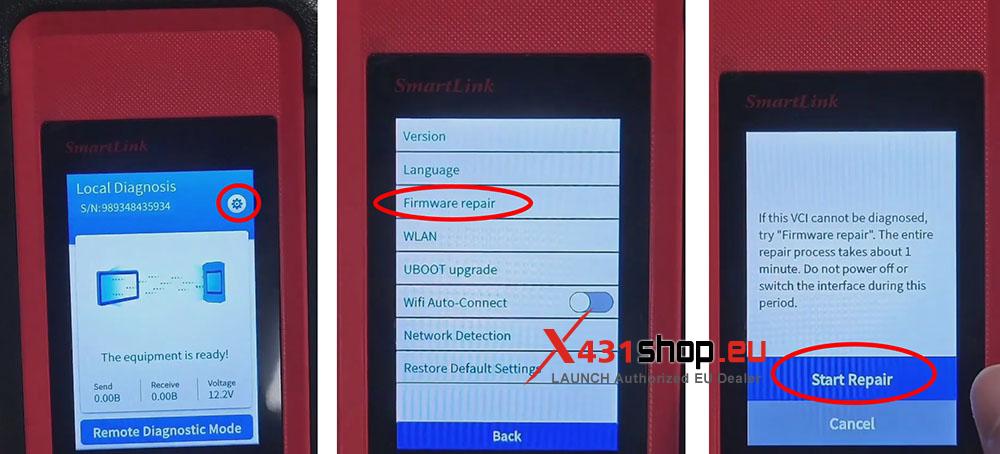
Click the settings icon in the upper right corner, select [WLAN], choose a network, and connect.

3) After configuring the network connection, perform the repair: Click the settings icon in the upper right corner, select [Firmware repair] -> [Star Repair]. Just wait for the upgrade to complete.
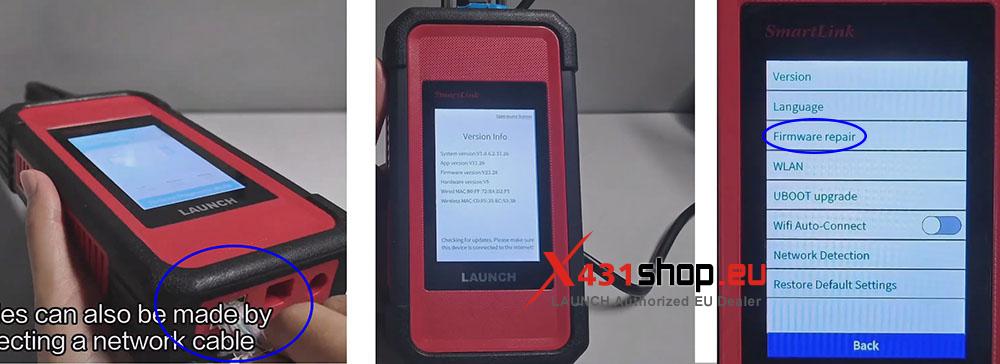
Alternatively, you can use a network cable directly, which allows you to skip network settings and directly select [Firmware repair].
NOTE: LAUNCH SmartLink has two modes: “Local Diagnostic Mode” and “Remote Diagnostic Mode”. Please perform firmware repair in Local Diagnostic Mode.
Method 2: Connect SmartLink to the X431 diagnostic tool for repair.
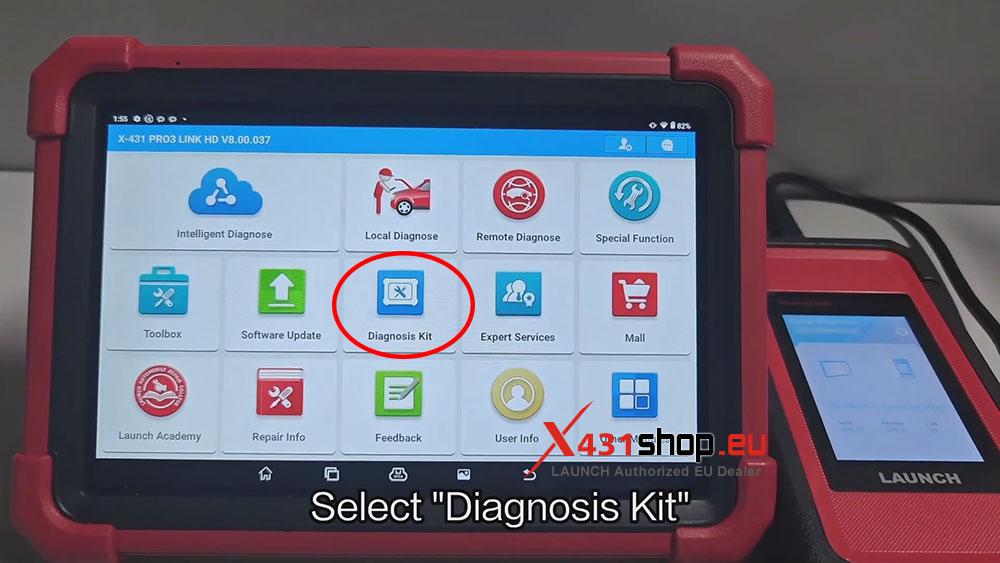
1) Connect SmartLink to the X431 diagnostic tool. On the X431 APP, select [Diagnosis Kit] -> [Fix Connector Firmware].

2) Click [FIRMWARE FIX]. The main unit will connect to SmartLink C V2.0 via Bluetooth.
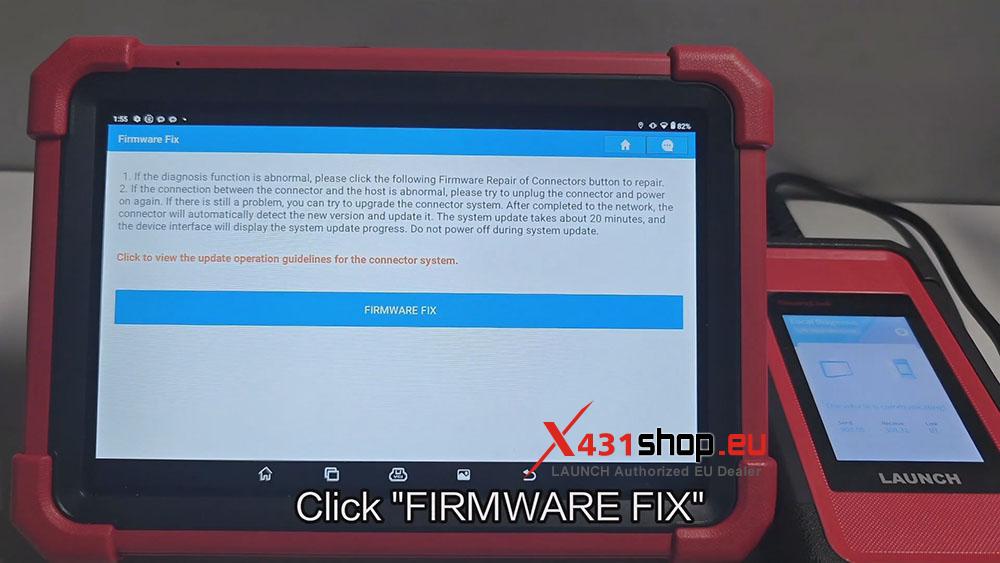
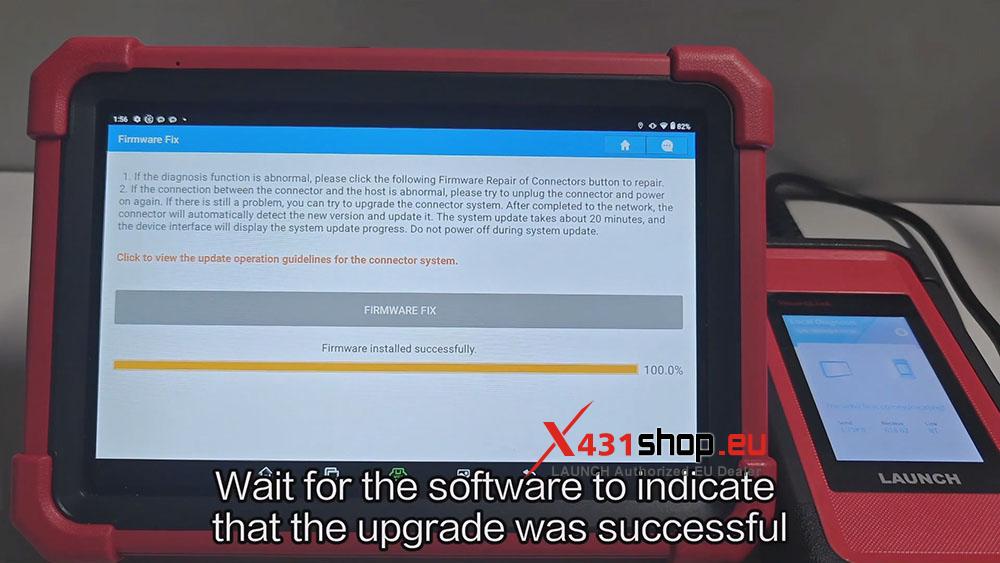
3) Wait for the software to indicate that the upgrade was successful.